WoW Forever lets you map 84 abilities to your controller
Four action bars, three layouts, and dedicated targeting controls make gamepad play possible.

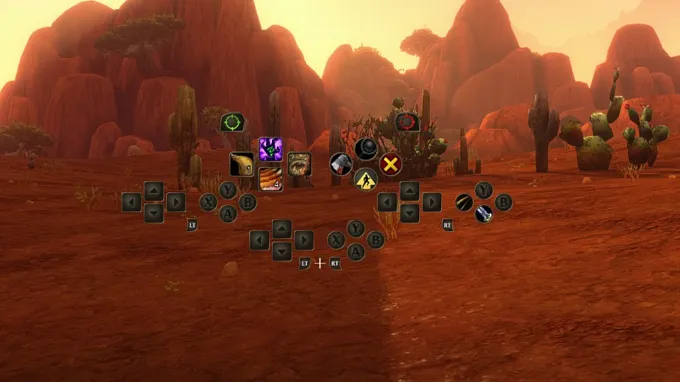
WoW Forever supports all XInput-compatible controllers, including Xbox and PlayStation. The only one that might not show the proper buttons is the Switch controller.
The system is still in beta, but there is already quite a bit to configure before heading into combat.
How to Enable Controller Support
Controller Support will not be enabled directly, you have to switch to it first:
Press Escape to open the Game Menu
Select Options
Pick "Gamepad" under the Gameplay tab
This will let you switch from keyboard and mouse to controller.
After that, you can adjust things like the camera, HUD Modifier, Frame Focus Style, Action Bars, Targeting, and even Raid Targeting Options.
And there is even a small little touch if you have a controller that has supported lighting, such as the PS5 controllers. The light will turn red for Horde characters, and blue for an Alliance character!
Controller Quick Guide
Now that your controller support is activated, it is time to put it to work. You can move, select a target, use any abilities, and navigate the menus with it.
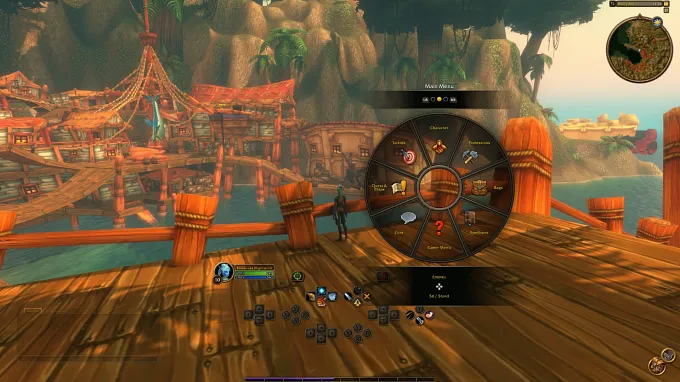
Here are the main controls for your PS5 or Xbox controller:
Move and look around
For both controllers, move your character with the left stick and adjust the camera with the right stick
Select a target
Use the left bumper (LB/L1) for a friendly target or the right bumper (RB/R1) for a hostile target
Interact and navigate
On Xbox: X for Interact, A for Jump, B for Back, and Y for Inspect. These buttons also have spell functions
On PS5: Square for Interact, X for Jump, O for Back, and Triangle for Inspect. Same as for Xbox, these buttons also have spell functions
Switch action bars
Hold the triggers, LT/L2, RT/R2, or both triggers together to access different action bars
Release the triggers to return to your default action bar
Open menus and action wheel
The Menu button opens the Main Menu
The View button, marked with overlapping squares, is listed as Change Focus Frame
You have an action wheel where you will find your map, journal, quests, professions, Legacy system, etc.
Move your left or right stick to select one of the icons
Zoom in and Zoom Out with the Camera
Hold the left bumper (LB/L1)+ the right bumper (RB/R1) while moving the right stick forward and backward to zoom the camera in and out.
The heads-up display, or HUD, uses different panels arranged to mirror a gamepad's layout, helping you connect your abilities with the controls in your hands.
The gamepad allows 4 action bars in total. Each uses the same button layout but can hold a different set of spells and abilities.
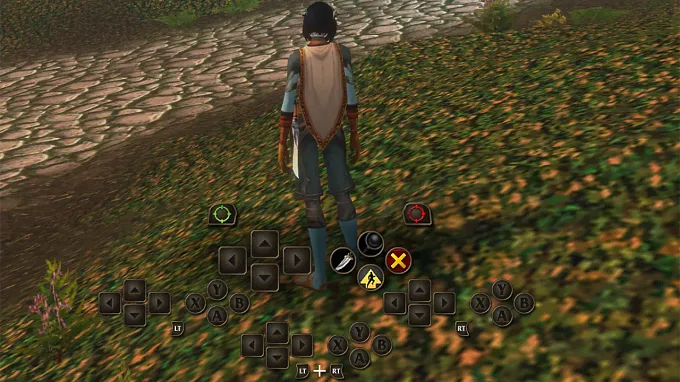
Hold LT, RT, or LT + RT (L2, R2 or L2+R2 for PS5) to switch bars, and release the triggers to return to the default bar.
The HUD updates to show the abilities available on your active bar. So if you hold down a trigger, it will switch to what you have assigned on that bar, and when you release it, it shows what is assigned on the default bar.
Blizzard gave a pretty good example. A Mage could assign four spells to the same directional button:
Up: Polymorph (Sheep)
LT + Up: Fireball
RT + Up: Frostbolt
LT + RT + Up: Blizzard
These are only examples, not fixed bindings. If you are a Mage, you can assign another spell to these buttons. You can put whatever you want on them.
You can also have different layouts for combat, utility abilities, or frequently used actions. You can switch between three different action bar sets by holding LB+RB or L1+R1 and pressing the Left or Right arrow on the direction pad (D-pad).
Each set has all 4 action bars with their 28 slots, for a total of 84 slots.
HUD Shortcuts
Opening the wheel or main menu to access certain actions can quickly become annoying, especially when you are in the middle of a fight or need to quickly access something. This is why Blizzard added a few really nice shortcuts.
LB + RB + B: Open Backpack
LB + RB + Up: Access Quest Tracker
LB + RB + Down: Access Chat
LB + RB + Y: Manage Buffs
Find Your Controls
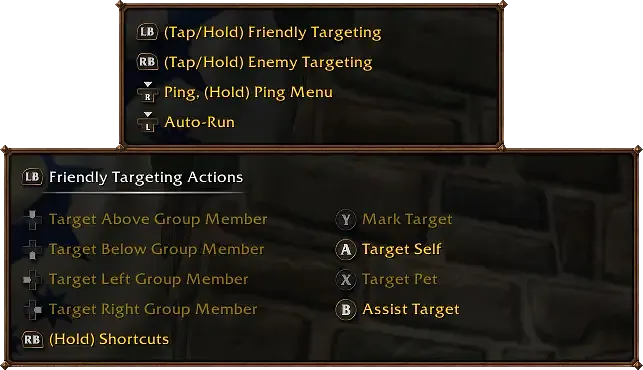
When you are playing, you will notice a gamepad legend in the upper-left corner of your screen. It gets bigger when you do certain actions and will show more options. So if you are unsure about how to do something with your controller, you can always refer to it.
This is also where you will see your Friendly Targeting controls.
Tanking, healing, and dealing damage all depend on selecting the right target at the right moment. Friendly and hostile targeting controls help you choose allies and enemies when you play with your party.
With all of that, you should be ready to relax on your couch and play with your controller for the entire launch evening.
If there is any issue when you play with a controller, feel free to send feedback to Blizzard, because the feature is still in Beta, so it could help smooth out the rough edges.
For more information about WoW Forever, check out our latest news.